














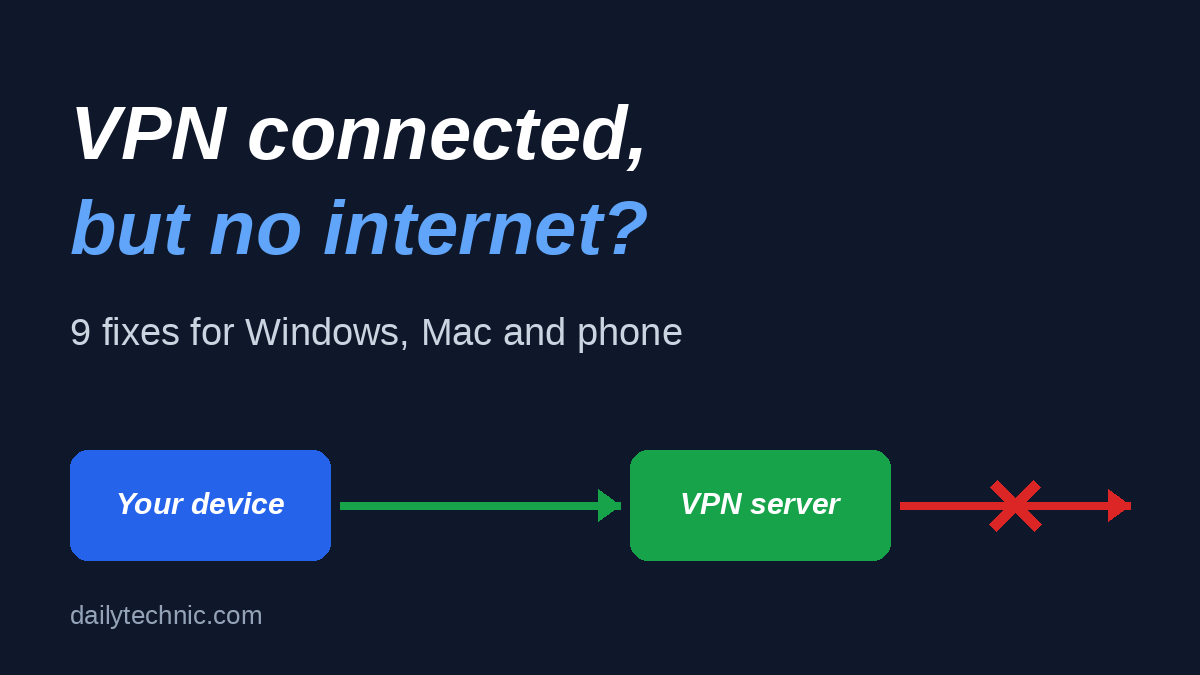
The VPN app shows a green light and the word “Connected”. Then you open a browser and nothing loads. No error, just a spinning tab or “No internet”.
This is one of the most common VPN problems, and it is almost always a settings issue on your side or the provider’s side, not a dead connection. The fixes below go from the fastest to the most technical. Stop as soon as pages load.
Why a VPN can connect and still have no internet
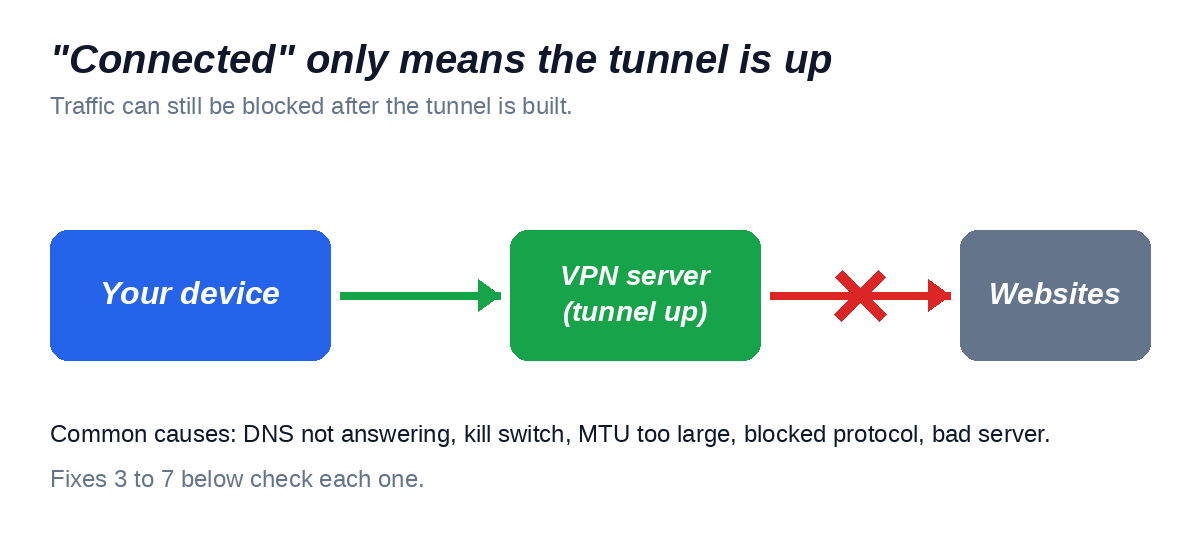
A VPN has two jobs. It builds an encrypted tunnel to a server, and it sends all your traffic, including DNS lookups, through that tunnel. The “Connected” light only tells you the first job worked. If the second one fails, you have a tunnel with nothing flowing through it.
The usual causes are a DNS server that cannot be reached, a kill switch or firewall rule blocking traffic, a packet size (MTU) that is too big for the tunnel, an overloaded server, or another program fighting the VPN for control of your network.
Fix 1: Test whether it is the VPN or your connection
Disconnect the VPN and open any website. If it still fails, the problem is your Wi-Fi, router or provider, and the VPN is not at fault. Restart the router and try again.
If the site loads without the VPN and fails with it, keep going.
One special case: on hotel, airport and cafe Wi-Fi, you often have to accept terms on a login page first, and that page cannot open through the VPN. Disconnect the VPN, open a plain http page such as neverssl.com, accept the terms, then connect the VPN again.
Fix 2: Disconnect, wait, and reconnect to another server
Pick a different server, ideally in a different city or country. A single overloaded or misconfigured server is the most common reason for a tunnel that connects but carries no data.
Wait about ten seconds after the VPN says “Connected” before you test. Some apps report the connection a moment before the routes are ready.
Fix 3: Check for a DNS problem
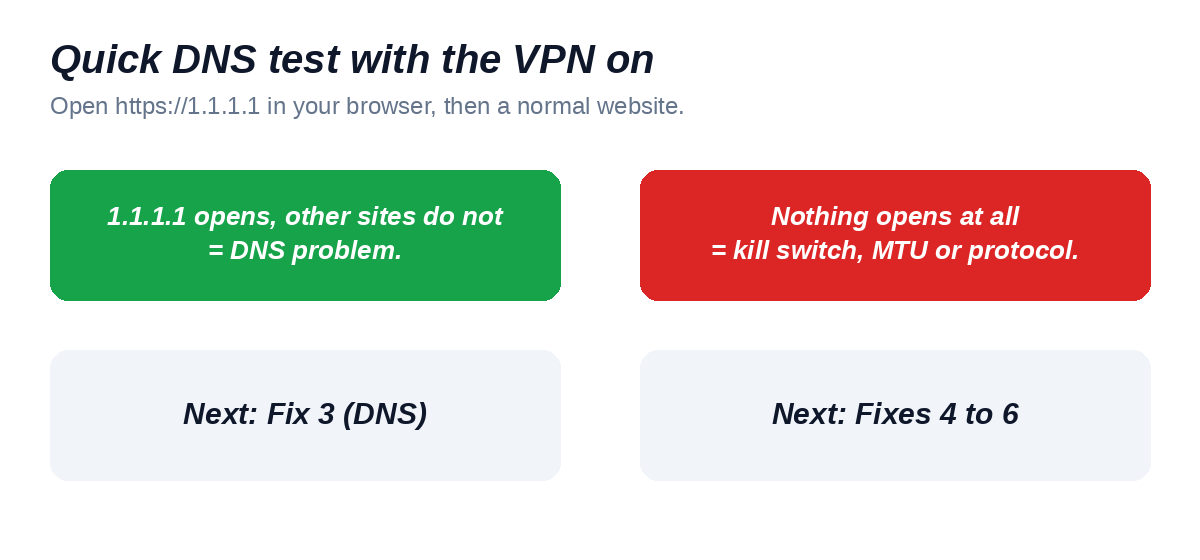
DNS turns a name like dailytechnic.com into an address. If the DNS server your VPN assigns is not answering, websites will not load, but typing a raw IP address, for example 1.1.1.1, may still work. That is a clear sign of DNS trouble.
To test it, connect the VPN and try to open https://1.1.1.1 in your browser. If that opens and normal sites do not, the tunnel works and DNS is the problem.
What to do:
- In the VPN app settings, turn on the option to use the VPN’s own DNS, or choose a custom DNS such as 1.1.1.1 or 8.8.8.8.
- Flush the DNS cache. On Windows, open Command Prompt as administrator and run: ipconfig /flushdns
- On a Mac, open Terminal and run: sudo dscacheutil -flushcache; sudo killall -HUP mDNSResponder
- On a phone, toggle airplane mode on and off, which clears the connection state.
Fix 4: Turn the kill switch off to test it
A kill switch blocks all traffic when the VPN drops. That is a useful safety feature, but a faulty one can keep blocking traffic after the VPN comes back up.
Turn the kill switch off, reconnect, and test. If everything works, the kill switch was the cause. Update the app, or contact support, and turn it back on once it behaves. Do not leave it off if you rely on the VPN for privacy.
Fix 5: Change the VPN protocol
In the app settings, switch protocol. If you are on OpenVPN, try WireGuard or the provider’s own protocol, and the other way around. If your network blocks one protocol, a different one, or the same one over TCP instead of UDP, often gets through.
Networks at work, school and some countries are known to block specific VPN ports. If the VPN only fails on one network, that is the likely reason.
Fix 6: Lower the MTU
MTU is the largest packet your connection sends at once. A VPN adds extra data to every packet, so a setting that works without it can be too large with it. The symptom is exactly this one: it connects, small things work, many pages hang.
Many VPN apps let you set the MTU in advanced settings. Try a lower value such as 1400, then go lower if needed. Some apps also have an automatic MTU option, which is worth trying first.
Fix 7: Check your firewall, antivirus and other VPNs
Security software can block the VPN’s network adapter. Temporarily turn off the third-party firewall or the web protection part of your antivirus, test, and then add the VPN app as an allowed program instead of leaving protection off.
Also check that no second VPN, proxy, or “secure network” feature is running. Two programs trying to control the same traffic is a classic cause of a dead tunnel. Windows Defender Firewall can be checked the same way.
Fix 8: Reset the network stack
On Windows, open Command Prompt as administrator and run these, one at a time, then restart the PC:
- netsh winsock reset
- netsh int ip reset
- ipconfig /release and then ipconfig /renew
Also open Device Manager, find the VPN’s virtual adapter under Network adapters, and uninstall it. Reinstalling the VPN app recreates it cleanly. On a Mac, remove the VPN configuration from System Settings, Network, and set it up again. On a phone, delete the VPN profile in settings and add it back from the app.
Fix 9: Update, reinstall, and contact support
Update the app and the operating system. Then uninstall the VPN app, restart, and install a fresh copy. This clears broken adapters and old settings.
If it still fails, ask the provider’s live chat. Tell them your device, the server you tried, and the protocol, so they do not send a generic reply. A good provider can usually tell you in a few minutes whether a server is down.
If you keep hitting this problem across servers and protocols, the provider may simply be unreliable. See our list of the best VPNs for Netflix and Amazon Prime. If you only need a free option for light use, our guide to the best free VPNs for streaming covers what to expect.
Related: when the VPN works but a site still blocks you
If your internet works fine through the VPN but one service refuses to play, that is a different problem. For Netflix specifically, see our fix guide for the “You seem to be using a VPN or proxy” error.
Quick summary
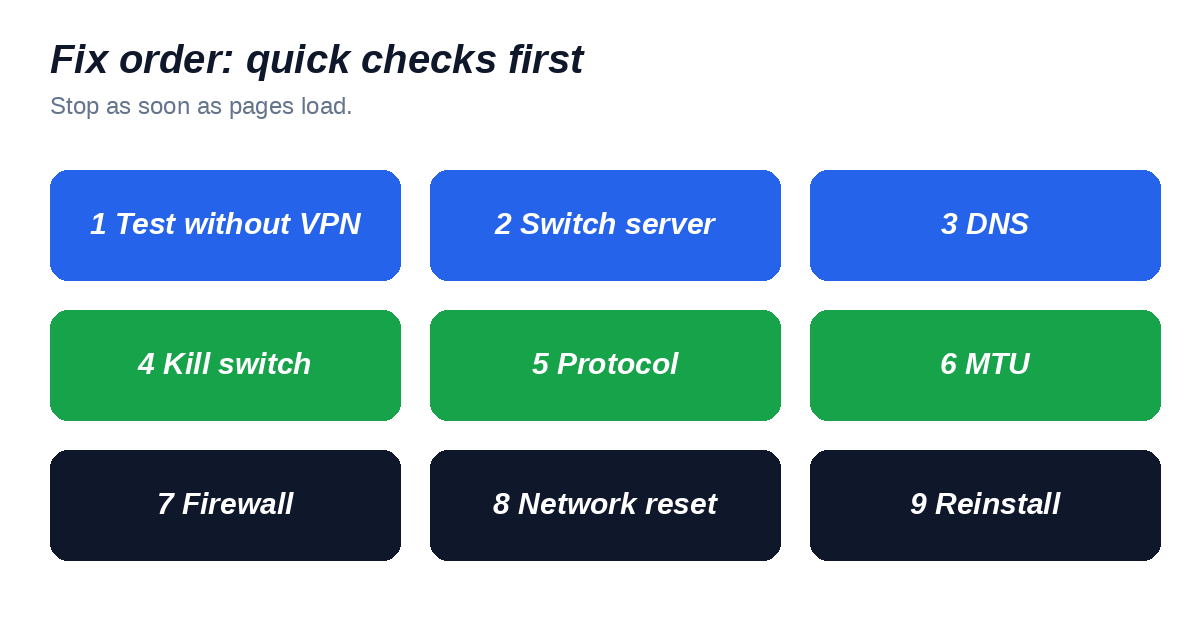
- Test without the VPN to see whether your connection is the problem.
- Switch servers and wait a few seconds after connecting.
- Check DNS: switch to the VPN’s DNS or 1.1.1.1 and flush the cache.
- Test with the kill switch off.
- Change the protocol.
- Lower the MTU.
- Check the firewall, antivirus and any second VPN.
- Reset the network stack and reinstall the VPN adapter.
- Update, reinstall, then contact support.
FAQ
Why does my VPN say connected but I have no internet? The tunnel is up but traffic is not flowing, usually because of DNS, a kill switch, MTU, a blocked protocol, or a bad server. Fixes 3 to 6 cover these.
Is it safe to turn the kill switch off? It is fine for a short test. Turn it back on afterwards if you use the VPN for privacy.
Why does it only fail on one Wi-Fi network? That network may block VPN ports or protocols. Try another protocol, or another port if your app offers one.
Can a VPN slow my internet down this much? A VPN can lower speed, but a full stop is not normal slowdown. It points to a settings or server problem.